Chapter 15
iOS
iOS is the one platform where your truce plug-in runs as something
other than a .clap / .vst3 / .component in a desktop DAW: it
ships as an AU v3 App Extension (.appex) wrapped inside a
container .app. Same Rust DSP, same params, same editor — but the
deployment shape, the signing model, and the GUI dimensions are
different enough to need their own chapter.
This chapter covers the iteration loop. The wire-format details (host coverage, AU identifiers, the simulator's remote-VC quirks) live in formats/au-ios; return there once you're past the first install.
#Prerequisites
| What | Why |
|---|---|
| Full Xcode (not just CLI tools) | xcodebuild, swiftc, the iPhoneOS / iPhoneSimulator SDKs |
| Booted iOS Simulator | Iteration target; xcrun simctl boot 'iPhone 17 Pro' |
Apple Developer team ID + .mobileprovision |
Required only for device installs and .ipa packaging — simulator installs ad-hoc sign with - |
| Paired & trusted iPhone / iPad | For --ios-device; xcrun devicectl list devices to verify |
xcode-select -p must point at a real Xcode.app bundle. The
CLI-tools-only install (xcode-select --install) doesn't carry the
iOS SDKs.
#Simulator workflow
This is where 90% of iteration happens. Sub-second install, no signing, no device pairing.
xcrun simctl boot 'iPhone 17 Pro'             # one-time per session
cargo truce install --ios -p my-plugin        # build + install
xcrun simctl launch booted com.acme.my-plugin # launch container
The container app discovers the AU via
AVAudioUnitComponentManager, instantiates it, and hosts the editor
in-process. A Play button drives cb.process from the device's mic
(for effects) or a single test note (for instruments / MIDI
processors), so you can hear DSP changes without wiring the appex
into a real iOS DAW.
The container is built from a Swift template truce ships at install
time — title bar, embedded editor, Play button, status label, plus
a landscape sidebar overlay. Custom container apps (your own
SwiftUI / UIKit shell with bespoke layout, branding, multi-screen
flows) aren't supported yet. Plug-ins that need a richer
container hand-author one against the framework's C ABI, build it
outside the cargo truce pipeline, and load the same .appex
truce produces. Native first-class support for swapping the
container template is on the roadmap.
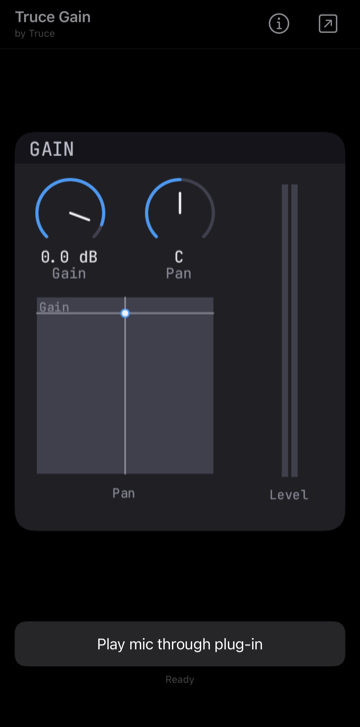
The truce-example-gain plug-in shown above is the same impl PluginLogic you'd run as a CLAP on desktop, with no iOS-specific
code in the plug-in crate — the container chrome around it is
emitted entirely by cargo truce install --ios.
cargo truce install --ios with no -p installs every
[[plugin]] in truce.toml — useful in a multi-plugin workspace,
but each install runs a fresh swiftc + signing pass so 12
examples is several minutes. Pick a plugin with -p for iteration.
#Device workflow
cargo truce install --ios-device -p my-pluginSame pipeline as --ios but signs against a real Apple Developer
identity and installs through xcrun devicectl. Three env vars are
required (TRUCE_IOS_TEAM_ID, TRUCE_IOS_SIGNING_IDENTITY,
TRUCE_IOS_PROVISIONING_PROFILE) and one is optional
(TRUCE_IOS_APPEX_PROVISIONING_PROFILE). Set them in
.cargo/config.toml (always gitignored; never put profile paths
or identities in truce.toml — that file is checked in):
# .cargo/config.toml
[env]
TRUCE_IOS_TEAM_ID              = "ABCD1234EF"
TRUCE_IOS_SIGNING_IDENTITY     = "Apple Development: Your Name (ABCD1234EF)"
TRUCE_IOS_PROVISIONING_PROFILE = "/abs/path/to/MyPlugin.mobileprovision"
# Optional — only when you use one profile per bundle ID rather
# than a wildcard profile that covers both container + appex:
TRUCE_IOS_APPEX_PROVISIONING_PROFILE = "/abs/path/to/MyPluginAppex.mobileprovision"
The simulator path (--ios) ad-hoc signs with - and ignores all
four — none of this matters until you want to push to a real
device or build a .ipa.
#Bootstrap from scratch
If you've never done iOS device signing before, here's the full end-to-end. Skip whichever steps you've already done. Everything below lives at developer.apple.com/account → Certificates, Identifiers & Profiles (the same UI Apple calls "developer portal"). A paid Apple Developer Program membership ($99/year) unlocks device installs and App Store distribution; the free tier ("personal team") only signs to your own devices and refreshes profiles every 7 days.
1. Generate a Certificate Signing Request (CSR). This is the public half of a key pair you generate locally; the Apple portal signs it to create a certificate you can use for code signing. You only need one CSR per cert type (development vs. distribution).
Easiest path — Keychain Access:
Keychain Access → menu Certificate Assistant →
Request a Certificate from a Certificate Authority…
Enter your email + a common name (e.g. Your Name iOS Dev),
select Saved to disk, and Key Pair Information → RSA →
2048 bits. The wizard drops a .certSigningRequest file on disk
and the matching private key into your login keychain.
CLI equivalent (if you'd rather not use the GUI):
openssl req -new -newkey rsa:2048 -nodes \
    -keyout iosdev.key -out iosdev.certSigningRequest
Keep the .key file safe — if you lose it, the corresponding
certificate is unrecoverable and you start over.
2. Find your TRUCE_IOS_TEAM_ID. On the developer portal,
Membership Details → Team ID — 10 chars, mixed
alphanumeric (e.g. ABCD1234EF). For personal teams, the ID is
auto-generated and shown in Xcode → Settings → Accounts →
Manage Certificates instead.
3. Create the signing certificate. Portal → Certificates → +. Pick:
- Apple Development for
cargo truce install --ios-deviceduring iteration. - Apple Distribution for
cargo truce package.ipareleases (App Store, TestFlight, Ad Hoc).
Upload the .certSigningRequest from step 1. The portal returns
a .cer file — double-click it to install into your login
keychain, where it pairs up with the private key you generated.
Verify it landed:
security find-identity -p codesigning -vYou should see a line like
"Apple Development: Your Name (ABCD1234EF)". That whole quoted
string (minus the quotes) is your TRUCE_IOS_SIGNING_IDENTITY.
4. Register an App ID. Portal → Identifiers → + → App IDs → App. Two choices for the bundle ID:
- Explicit (
com.acme.my-plugin) — covers exactly that one bundle. You'll need a second App ID + profile for the appex (com.acme.my-plugin.AUExt). - Wildcard (
com.acme.*) — covers both the container.appand the bundled extension with one App ID + one profile. The simpler setup for development; the App Store may require explicit IDs at submission time.
Tick any Capabilities the plug-in needs (commonly App Groups
if you set ios_app_group in truce.toml, plus
Inter-App Audio is generally not required for AU v3).
5. Register the test device's UDID. Portal → Devices → +. Get the UDID from the device:
xcrun devicectl list devices                  # paired devices
# or, with Xcode running and the device connected:
# Xcode → Window → Devices and Simulators → Identifier
Paste the 25-char (or 40-char on older devices) UDID into the portal and give it a name. Skip this step if you're only creating an App Store distribution profile (no UDID list needed).
6. Create the provisioning profile. Portal → Profiles → +. Pick:
- iOS App Development for device installs.
- App Store for
.ipareleases (no UDIDs). - Ad Hoc for installing a
.ipadirectly to listed UDIDs without going through the App Store.
Select the App ID from step 4, the certificate from step 3, and
(for development / ad hoc) the device(s) from step 5. Download
the resulting .mobileprovision. Save it somewhere outside the
repo (e.g. ~/AppleProfiles/MyPlugin.mobileprovision) and use
that absolute path as TRUCE_IOS_PROVISIONING_PROFILE.
7. (Optional) Separate appex profile. Only if step 4 used an
explicit App ID. Repeat steps 4–6 for
com.acme.my-plugin.AUExt and point
TRUCE_IOS_APPEX_PROVISIONING_PROFILE at the second
.mobileprovision. Wildcard App IDs skip this step entirely —
the same profile covers both bundles.
8. Wire the env vars. Drop the four values into
.cargo/config.toml as shown above, double-check
.cargo/config.toml is in your .gitignore, and run:
cargo truce install --ios-device -p my-pluginThe full env-var table — including the desktop signing variables
(TRUCE_SIGNING_IDENTITY, notarization,
Authenticode) — lives at
cargo-config reference.
After a device install, the container .app shows up on the home
screen under Apps from Developer
#Per-plugin iOS knobs in truce.toml
The iOS-specific fields go on the [[plugin]] entry (not in a
separate [ios] block):
[[plugin]]
name = "My Plugin"
bundle_id = "my-plugin"
crate = "my-plugin"
category = "effect"
fourcc = "MyFx"

# iOS appearance
ios_icon_set = "static/MyPlugin.appiconset"     # Xcode-format .appiconset dir
ios_orientations = ["portrait", "landscape-left", "landscape-right"]
ios_scale_editor_to_fit = true                   # default true
ios_minimum_os_version = "17.0"                 # workspace floor is 16.0

# Optional: app-group entitlement for fullState round-trip
ios_app_group = "group.com.acme.my-plugin"

# Cross-platform but iOS-relevant: silence preview audio in
# standalone + the iOS container app. Use for analyzers / tuners
# that visualise an input signal — keeps process() ticking but
# refuses to close the mic → speakers loop.
mute_preview_output = false
ios_orientations controls which orientations the container app
rotates into. First entry is the launch orientation. Default
["portrait", "landscape-left", "landscape-right"]. Landscape-only
plug-ins (e.g. MIDI effects designed for a wide knob row) pin the
container to landscape and the editor never sees portrait bounds.
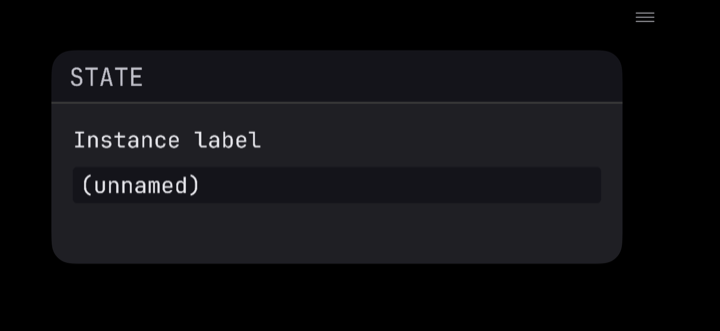
In landscape the container collapses its chrome (title bar, Play button, status label) into a hamburger menu in the top-right so the editor gets the full screen. Tapping the icon slides the chrome out as an overlay. Plug-ins that support both orientations switch between the portrait layout (chrome above + below) and this hamburger layout automatically on rotation.
ios_scale_editor_to_fit = true uniformly shrinks an oversize
editor to fit the container's hero region while preserving aspect
ratio. The framework default is true; opt out for plug-ins whose
editor is already iPhone-sized or that ship per-orientation
layouts.
ios_app_group is required if the plug-in needs to round-trip
fullState blobs or preset files between the appex sandbox and the
container app. Convention: group.{vendor.id}.{bundle_id}.
#GUI considerations on iOS
The same Editor impl that drives your desktop window paints into
a UIView on iOS, but two things shift:
Touch instead of pointer. The framework translates UITouch
events into the backend's pointer-event shape and pins each drag
to the originating touch's identity, so multi-finger taps don't
hijack an in-progress knob drag. The desktop pointer code paths
are unaffected.
Narrower canvas. iPhone portrait gives the container a ~370 pt wide hero region; iPad landscape gives ~700 pt. An editor sized for a desktop window (often 800–1000 pt wide) overflows. Three ways to handle it:
- Leave it.
ios_scale_editor_to_fit = trueuniformly shrinks the rendered bitmap to fit. Cheap and preserves layout exactly. - Cap the iOS dimensions. Custom editors can branch on
cfg(target_os = "ios")and report a different(width, height)toEguiEditor::with_ui/Editor::size:#[cfg(target_os = "ios")] let size = (400, 400); #[cfg(not(target_os = "ios"))] let size = (800, 400); - Reshape the layout.
BuiltinEditorgrids can take.with_cols(6)on iOS to halve the row count for a more landscape-friendly aspect.
#Preview-audio mute
truce-standalone (the desktop preview host) and the iOS container
app both drive process() themselves so the editor can render
without a DAW. For analyzer-style plug-ins (FFT visualisers,
tuners, spectrum displays) you want process() to run on mic
input but not route the plug-in's output back to the speakers
— otherwise mic → analyzer → speaker forms a feedback loop.
Set mute_preview_output = true in the plug-in's [[plugin]]
entry. The standalone and iOS container then call process()
each block as usual and zero the output buffer. Real DAW hosts
ignore the flag — they own their own output graph.
#Screenshot regression
cargo truce screenshot --ios \
    --out screenshots/my-plugin_default_ios.png -p my-plugin    # bake
cargo truce screenshot --ios --check \
    --out screenshots/my-plugin_default_ios.png -p my-plugin    # regress
Captures the simulator's rendered output via simctl io screenshot. This is the only path that sees iOS-specific
compositing (the BuiltinEditor's CGImage blit, UIView layer
contents swap). --crop-mode container keeps the full container
chrome (title bar, editor, Play button) for framework-level
regressions; --crop-mode editor (the default) trims to just the
plug-in's UIView.
The tool is orientation-aware: landscape-only plug-ins get their captured framebuffer rotated to match the rendered UI before the crop runs, so the editor-frame coords line up. Sim resolution depends on the booted device — bake the baseline on whichever simulator your CI matrix uses.
#What doesn't ship on iOS
| Feature | Why |
|---|---|
--shell hot reload |
iOS App Extensions reject dlopen of anything outside the signed bundle's Frameworks/ |
truce-vizia |
Vizia hard-pins vizia_baseview, and baseview has no target_os = "ios" platform impl — desktop only |
| CLAP / VST3 / VST2 / LV2 / AAX | Platform contract — iOS only hosts AU v3 |
Universal .ipa |
Device + simulator slices have distinct Mach-O platform IDs and can't lipo together; use --xcframework packaging if you need both slices in one artifact |
#What's next
- formats/au-ios — host coverage matrix, AU manufacturer / subtype identifiers, the AVAudioEngine source- node render-callback contract, MIDI 2.0 UMP forwarding details, the simulator remote-VC workaround.
- Chapter 14 → hot reload — macOS / Windows / Linux dev-loop tool. iOS sits this one out (platform constraint).